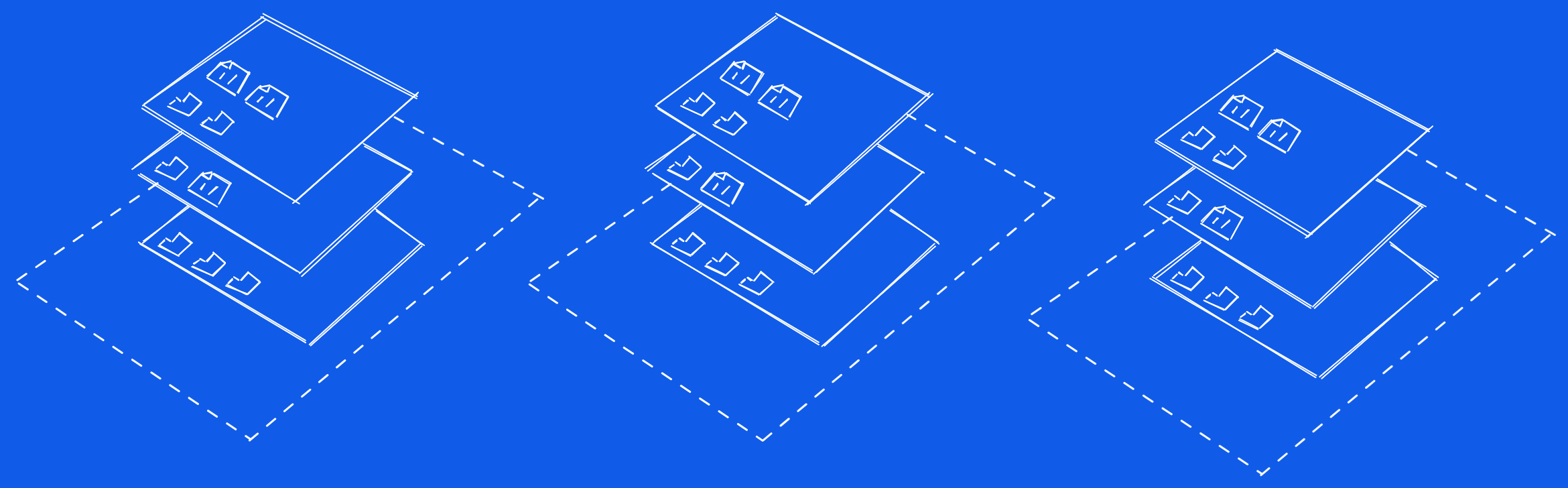
Containerisation is a very common way to build and deploy modern applications and systems, especially in cloud environments. It lets us build software and run it anywhere. With Kubernetes, containers can be scaled near-instantaneously. Failed containers can be restarted automatically. Systems can be made highly-available with ease, and respond dynamically to load, reducing cost when load is low but scaling up for demand.
Containers can start up quickly because they are very lightweight.
Before containers, there were virtual machines. A virtual machine runs a whole guest operating system, on top of a piece of software called a hypervisor. This hypervisor manages the resources for the VM and translates the kernel instructions of the guest OS to the host OS.
A container, on the other hand, is just a set of files.
The files of the container are actually in your host OS’s filesystem. With Docker, for example, we can use
docker container inspect mycontainer | jq '.[0].GraphDriver'liamasman@192 ~ % docker ps liamasman@192
CONTAINER ID IMAGE COMMAND CREATED STATUS PORTS NAMES
0f17c3977988 nginx:latest "/docker-entrypoint.…" 31 minutes ago Up 31 minutes 80/tcp beautiful_brahmagupta
liamasman@192 ~ % docker container inspect 0f1 | jq '.[0].GraphDriver' liamasman@192
{
"Data": {
"LowerDir": "/var/lib/docker/overlay2/86aa2dbb2c59bb4b5be703c183412feb6a4725475da18c5029395ca37db7f804-init/diff:/var/lib/docker/overlay2/d5962f8214e34330c59204b701e3c0cf3e6e07774a70dee3d166922e2430f6bb/diff:/var/lib/docker/overlay2/be39bf6686103132133785efbec01ee33a9aa66cc0e91792445aff2e5267260b/diff:/var/lib/docker/overlay2/3d14b71a591589ecff6b08e54e4cfbf067f7763febb68debb4d78dd486c1c853/diff:/var/lib/docker/overlay2/8cb3093709a9848920b283558bd0fb351864bf2adc3868948b26443c2a493618/diff:/var/lib/docker/overlay2/d0f9002abad1d18b9848c88316f10488d9536e578e5987028cc890772942f6a6/diff:/var/lib/docker/overlay2/f84e65925a347711dcf2af30055f47a316ac29f7d2ebce4b6a8555632764000e/diff:/var/lib/docker/overlay2/fe9c2c1e61c2d20415f381167a9ae62db27aa2a8f3f48723499a1b2147820808/diff",
"MergedDir": "/var/lib/docker/overlay2/86aa2dbb2c59bb4b5be703c183412feb6a4725475da18c5029395ca37db7f804/merged",
"UpperDir": "/var/lib/docker/overlay2/86aa2dbb2c59bb4b5be703c183412feb6a4725475da18c5029395ca37db7f804/diff",
"WorkDir": "/var/lib/docker/overlay2/86aa2dbb2c59bb4b5be703c183412feb6a4725475da18c5029395ca37db7f804/work"
},
"Name": "overlay2"
}I’ll explain what the different directories are in a moment. If we do an ls of the “MergedDir”, we see our guest filesystem:
/ # cd /var/lib/docker/overlay2/86aa2dbb2c59bb4b5be703c183412feb6a4725475da18c5029395ca37db7f804
/var/lib/docker/overlay2/86aa2dbb2c59bb4b5be703c183412feb6a4725475da18c5029395ca37db7f804 # ls
diff    link    lower   merged  work
/var/lib/docker/overlay2/86aa2dbb2c59bb4b5be703c183412feb6a4725475da18c5029395ca37db7f804 # ls merged
bin                   docker-entrypoint.d   home                  media                 proc                  sbin                  tmp
boot                  docker-entrypoint.sh  lib                   mnt                   root                  srv                   usr
dev                   etc                   lib64                 opt                   run                   sys                   var
As an aside, containers run on Linux.
If you are on Mac, there is a Linux VM being used. You can run a special container that lets you navigate the VMs filesystem and process space:
% docker run -it --privileged --pid=host debian nsenter -t 1 -m -u -n -i shContainers work using a layered file system.
A container image is a snapshot of a file system. Containers are then started using an image. A container can be snapshotted to make a new image. Each image builds a new layer on top of a previous one.
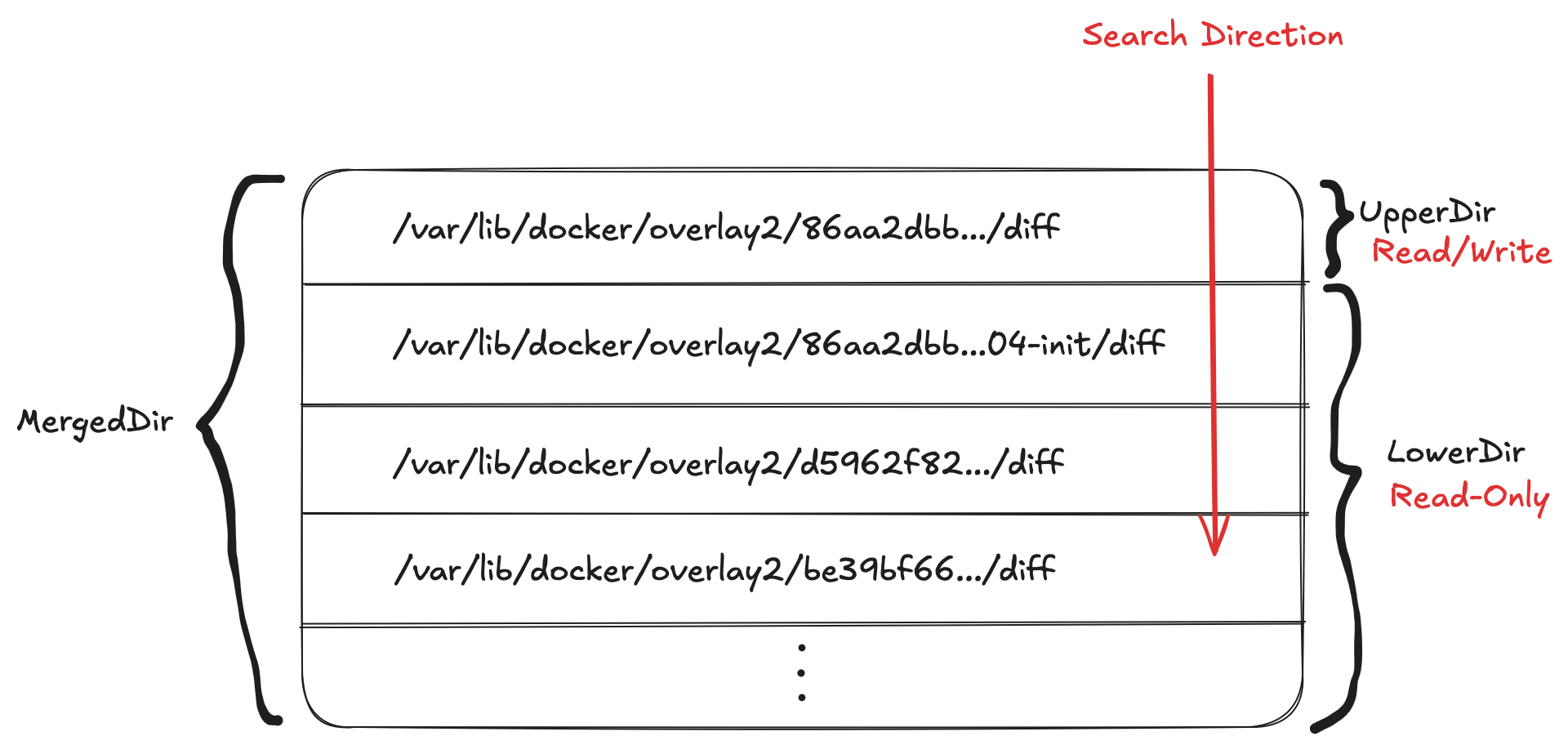
The “LowerDir” section lists read-only directories. They are the changes to the file system introduced at each layer of the image. By being read-only, every container that shares image layers can share the same directories.
This massively reduces the footprint and improves start-up time for containers.
When a container wants to make changes to the file system, it writes to the directory listed in “UpperDir”.
This directory is owned only by the container.
The “MergedDir” represents the combined view of the filesystem. When accessing a file through the MergedDir, the container starts in the “UpperDir”. If it can’t find a file, it starts making it’s way through the filesystem of each layer of the image.
The overlay filesystem is efficient, but there are some caveats to be aware of. The first write to a file that already exists in the read-only part of the file-system requires copying up the whole file to the UpperDir.
That’s the filesystem, what about processes?
It’s very similar! If you exec into a container and run a ps, you’ll find PID 1. However, we can find the exact same process on our host OS, just with a different PID.
/ # ps aux | grep nginx
 1940 root      0:00 nginx: master process nginx -g daemon off;
 1982 101       0:00 nginx: worker process
 1983 101       0:00 nginx: worker process
 1984 101       0:00 nginx: worker process
 1985 101       0:00 nginx: worker process
The processes are running as normal processes in our host OS.
If I kill the master process, it kills the container.
For security, there are special tools used to ensure the container can’t access the host OS or have free reign over resources; process namespaces and cgroups, for example.
This is a very basic overview of how containers work, but I hope it provides some useful understanding.